-
Instructions for installing and configuring Zoiper on your iPhone
Step 1Download and install Zoiper
Skip this step if you have Zoiper already installed on your device.
Download Zoiper with iTunes or download it directly from the App Store on your mobile device.
If not, please follow the provided screenshots . Look for the "App Store" and click on it.
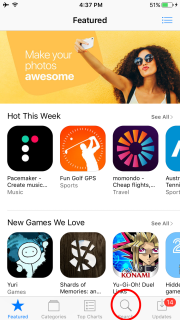 Wait for the App store application to load and click on the search icon (magnifying glass) on the bottom right.
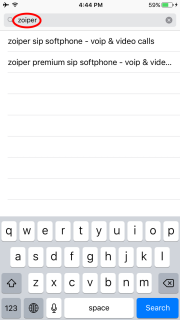 Type in Zoiper (This requires an active internet connection).
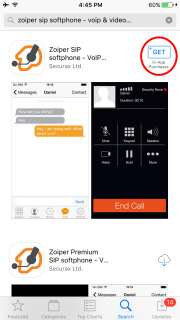 Click on the install button next to "Zoiper Softphone by Securax Ltd."
 Tap the blue install button.
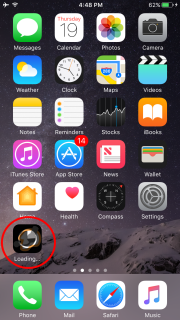 The application will now start installing.
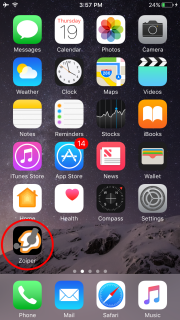 After a few minutes the progress bar will disappear and the application will be ready for use.Step 2Start Zoiper and scan the QR code
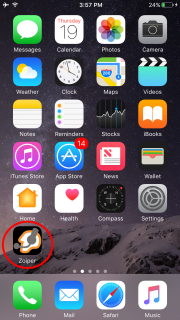 Click on the Zoiper icon to start the application.
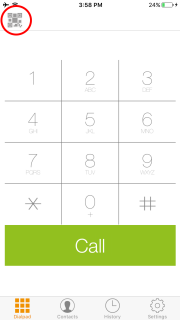 When the application is loaded, click on the top left button.
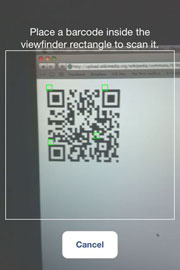 A viewfinder will appear, please position the phone so that the black and white barcode from step 3 fits between the lines.Step 3Scan this QR codeStep 4Provide a username and a password
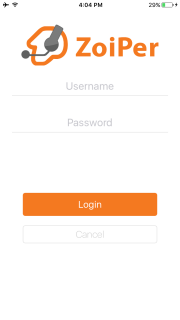 DoneYou can now use your ZoiperCongratulations! You're ready to use your Zoiper.
If you had any difficulties following the steps provided above, please feel free to contact our customer support.Instructions for installing and configuring Zoiper on your Android
Step 1Download and install Zoiper
Skip this step if you have Zoiper already installed on your device.
Download Zoiper from the Google Play website or install it directly from the Google Play application on your device.
If not, please follow the provided screenshots .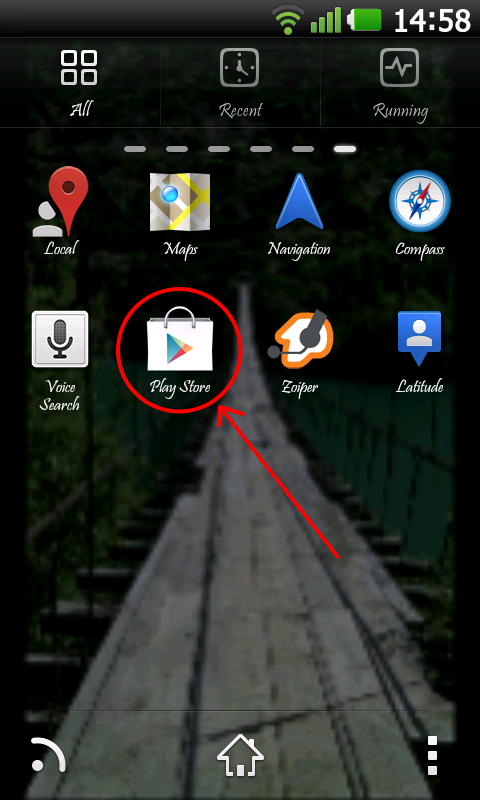 Look for the "Google Play" icon and click on it.
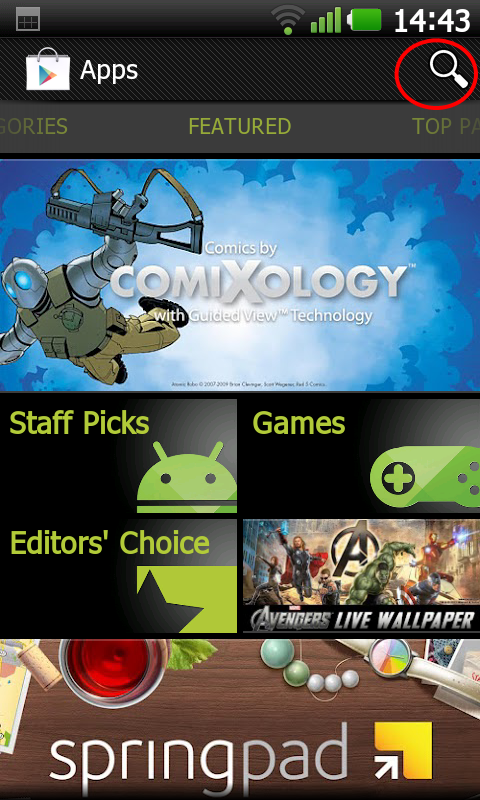 Wait for "Google Play" to load and click on the search icon (magnifying glass) on the top right.
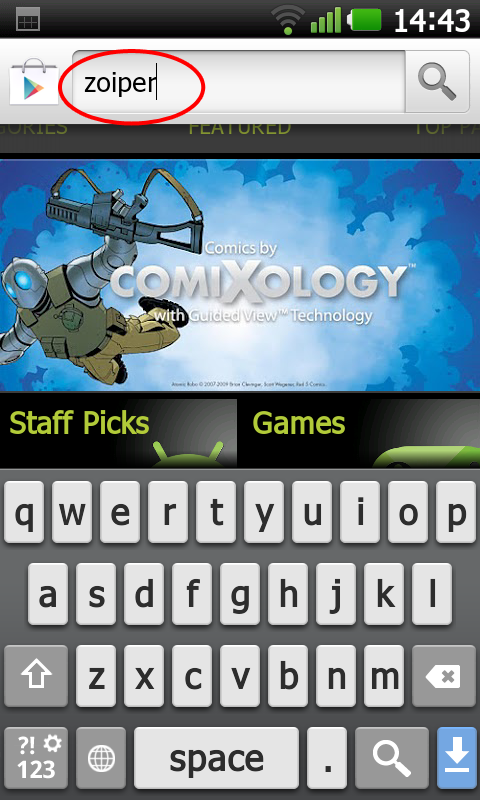 Type in "Zoiper" (This requires an active internet connection).
 Click on "Zoiper Softphone by Securax Ltd."
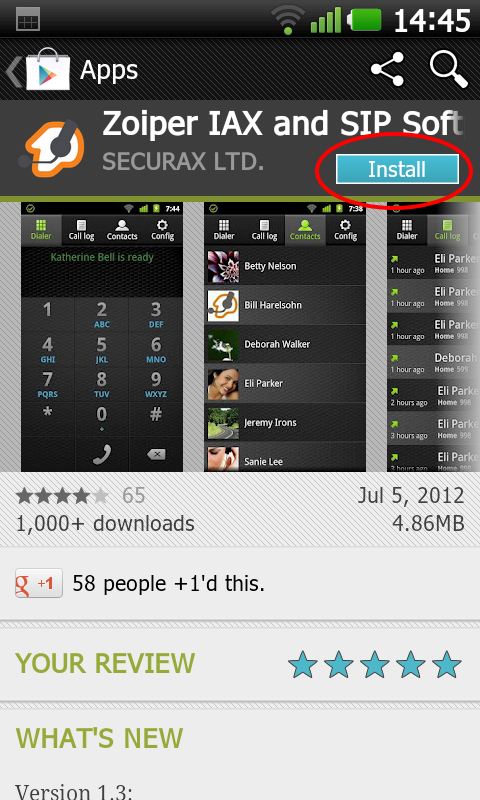 Tap the blue install button.
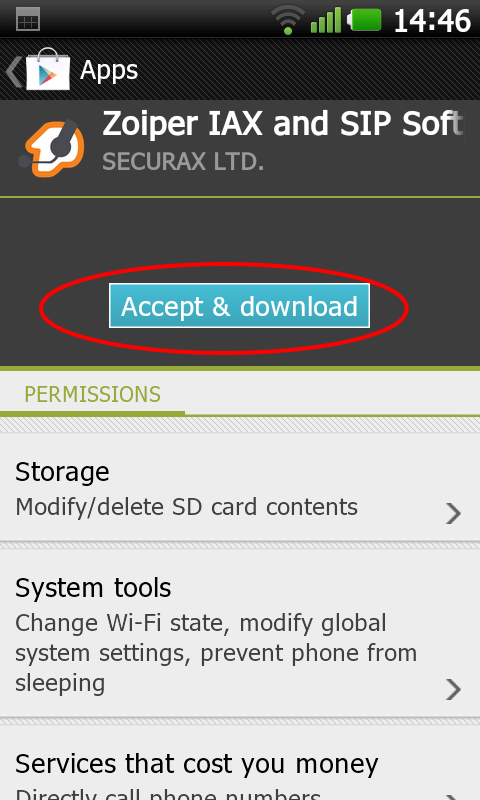 Tap "Accept & Download".
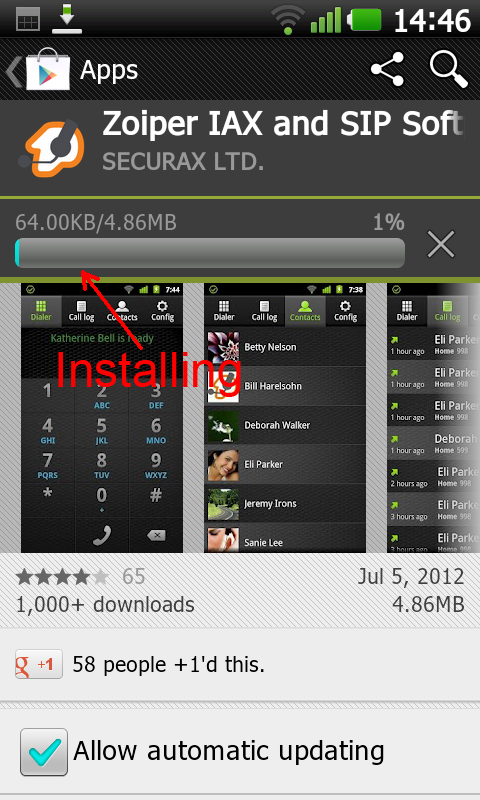 The application will now start installing . After a few minutes the progress bar will disappear and the application will be ready for use.
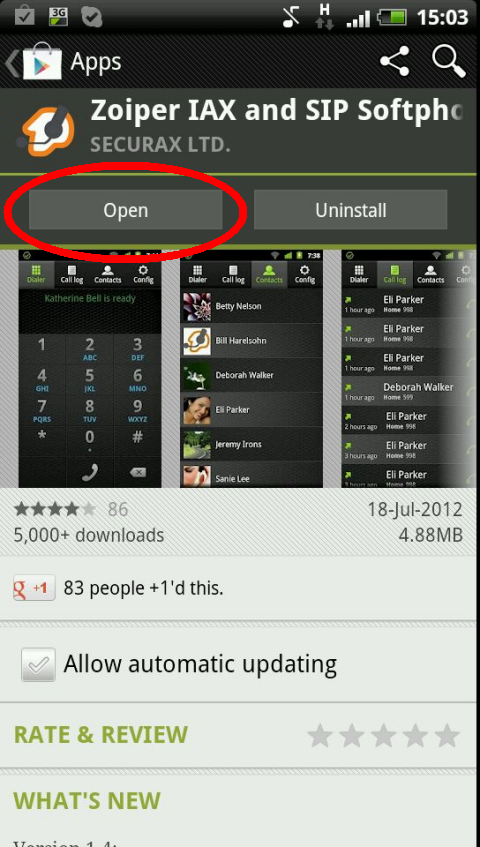 Click on Open to start Zoiper.Step 2Start Zoiper and scan the QR code
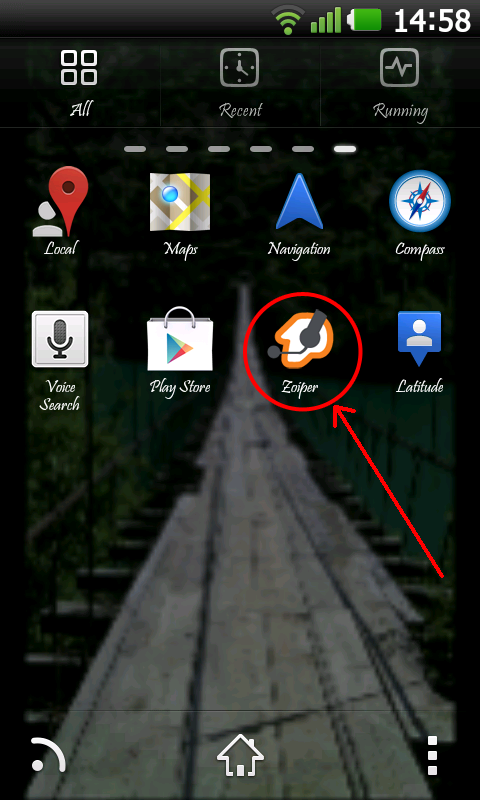 Click on the "Zoiper" icon to start the application.
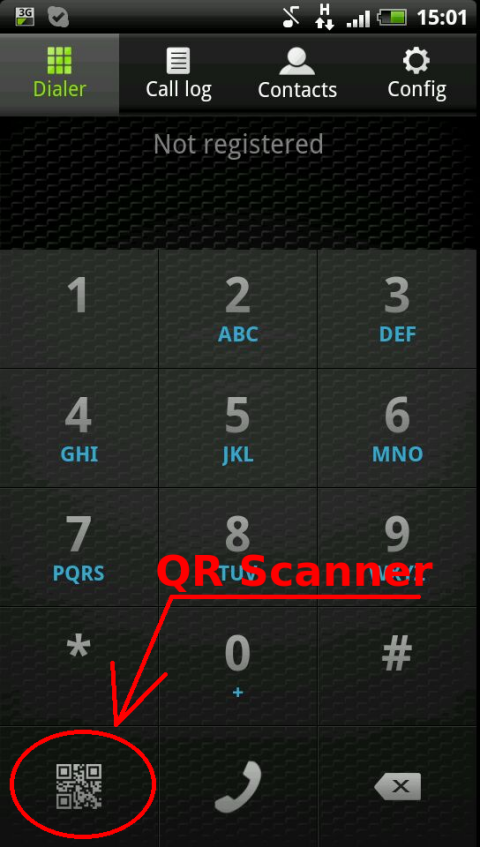 On the bottom left click on the QR Scanner button.
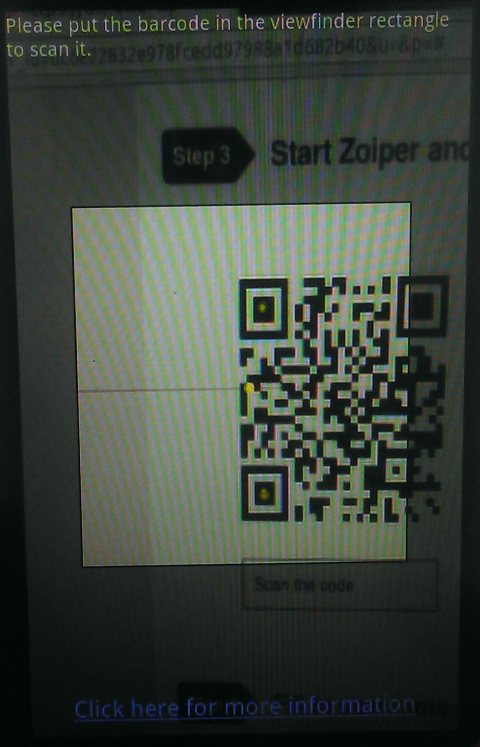 A viewfinder will appear, please position the phone so that the black and white barcode from step 3 fits between the lines.Step 3Scan this QR codeStep 4Provide a username and a password
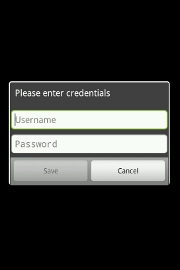 DoneYou can now use your ZoiperCongratulations! You're ready to use your Zoiper.
If you had any difficulties following the steps provided above, please feel free to contact our customer support.Instructions for installing and configuring Zoiper on your Windows Mobile
Step 1Download and install Zoiper
Skip this step if you have Zoiper already installed on your device.
Download Zoiper from the Official Windows Phone website or install it directly from the Store application on your mobile device.
If not, please follow the provided screenshots .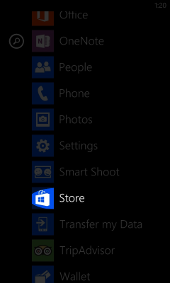 Open the Store.
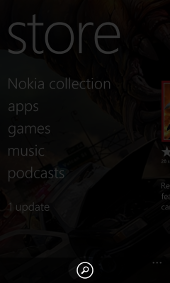 Click on the "Search" icon.
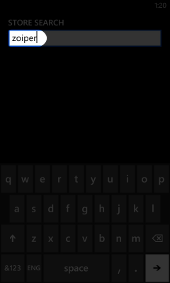 Type in "Zoiper" (This requires an active internet connection).
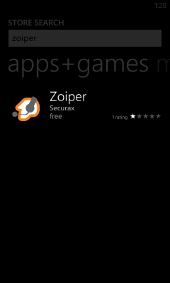 Click on "Zoiper".
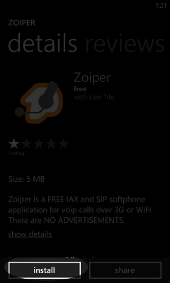 Click on "install".
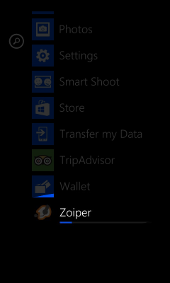 Zoiper will download and install.Step 2Start Zoiper and scan the QR code
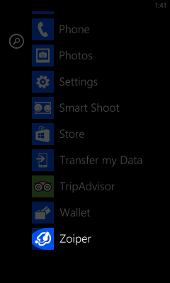 Find Zoiper in your applications and start it.
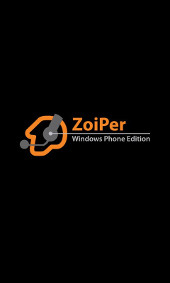 Zoiper will load.
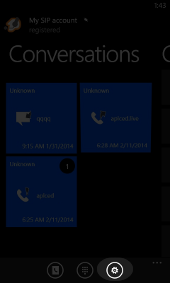 Click on the Settings icon.
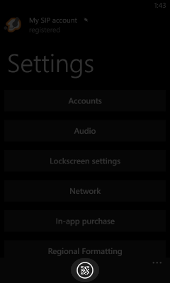 Click on the QR code scanner icon.
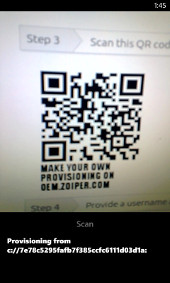 Scan the QR code.Step 3Scan this QR codeStep 4Provide a username and a password
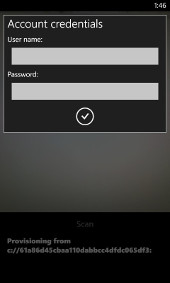 DoneYou can now use your ZoiperCongratulations! You're ready to use your Zoiper.
If you had any difficulties following the steps provided above, please feel free to contact our customer support.
Sunday, August 25, 2019
Powered by WHMCompleteSolution